

Last Updated: September 18, 2026
Configuring left-handed mouse buttons is usually a quick software change, but a poor setup can create frustrating problems. If the primary and secondary buttons are reversed incorrectly, you may open menus when you mean to select, drag files to the wrong location, or struggle with shortcuts in creative and gaming apps. An awkward thumb-button layout can also cause accidental clicks, wrist tension, or slower pointer control.
The good news is that most left-handed mice work with built-in Windows or macOS settings, while gaming and programmable models add their own control software. The steps below explain how to switch the main buttons, assign extra buttons, test the result, and keep the arrangement comfortable. The process applies to a basic office mouse as well as a specialized left-handed model in 2026.
As an Amazon Associate we earn from qualifying purchases at no extra cost to you. Product prices and availability are accurate as of the date shown and are subject to change.
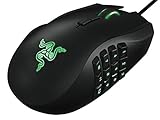

Quick answer: Our top pick in 2026 is the Left-handed or ambidextrous mouse — our #1 rated choice. See the full ranked comparison, alternatives and buying advice below.
What You Need
| Item | Why | Optional? |
|---|---|---|
| Left-handed or ambidextrous mouse | A properly shaped mouse keeps your thumb, fingers, and wrist in a neutral position. | No |
| Computer running Windows or macOS | The operating system provides the basic primary-button swap and pointer controls. | No |
| USB receiver, cable, or Bluetooth connection | The mouse must be connected before you can confirm its buttons and settings. | No |
| Manufacturer configuration app | Useful for changing thumb buttons, profiles, scroll behavior, sensitivity, and macros. | Yes |
| Flat, consistent mousing surface | A mouse pad makes pointer movement easier to judge while testing. | Yes |
| Left-handed mouse with programmable controls | For example, the $149 Razer Naga Left-Handed has 12 programmable thumb buttons and adjustable DPI up to 8,200. | Yes |
| Wireless trackball alternative | The $39.99 ELECOM EX-G Left Handed Trackball has six programmable buttons, thumb control, tilt scrolling, and a 2.4 GHz USB connection. | Yes |
Prices for left-handed pointing devices generally range from about $25 to $150, depending on whether you want a basic mouse, a trackball, wireless operation, or gaming controls. Confirm the operating-system compatibility before buying. A mouse may function as a basic pointer without its configuration app, but advanced button assignments may require Windows-only software.
Step-by-Step
1. Connect the mouse and identify its buttons (2 minutes)
Plug in the USB cable or receiver, turn on the mouse, or complete its Bluetooth pairing process. Move the pointer across the screen and click a blank area such as the desktop. Identify the button under your index finger and the button under your middle finger. On a left-handed mouse, the physical positions may be mirrored, but the operating system still labels functions as “primary” and “secondary.”
Also locate the scroll wheel and any side or thumb buttons. Do not assume that a button marked with a left-facing arrow is automatically a back button; its function may depend on the mouse software.
2. Switch the primary button in Windows (2 minutes)
In Windows 11, open Settings, select Bluetooth & devices, and choose Mouse. Find Primary mouse button, then change it from Left to Right. This makes the button under your left-handed index finger the main selection button.
Test it immediately by clicking a desktop icon once. It should select the icon. Click the other button once; it should open the shortcut menu. Double-click the first button to open a folder or application.
If you use an older Windows version, open Control Panel, select Mouse, and look for the Buttons tab. Choose Switch primary and secondary buttons, then select Apply and OK.
3. Switch the primary button in macOS (2 minutes)
Open System Settings and select Mouse. Find Primary mouse button, then choose Right. The exact wording can vary slightly by macOS version, but the setting is normally in the mouse panel rather than the trackpad panel.
Click a file once to confirm selection, then Control-click or use the secondary button to confirm that the contextual menu appears. If you are using a third-party mouse app, leave the operating-system setting as the foundation and use the app only for additional controls.
4. Configure extra buttons (5 to 10 minutes)
Install the mouse maker’s official configuration utility only if you need more than the basic primary-button swap. Connect the mouse directly to the computer during setup if possible. In the app, select the correct device and open its button-assignment screen.
For a general-purpose setup, assign the forward and back buttons to browser navigation. A thumb button can be set to copy, paste, mute, or show the desktop. Keep frequently used commands on large, easy-to-reach buttons and less common commands on smaller buttons.
For gaming, create separate profiles rather than changing the whole computer’s button arrangement. An MMO mouse such as the Razer Naga Left-Handed can place abilities on its 12 thumb buttons, but start with only the commands you use most. For productivity, the six programmable buttons on the ELECOM EX-G Left Handed Trackball can be assigned to common shortcuts without requiring frequent wrist movement.
5. Set pointer speed and scrolling (3 minutes)
Adjust pointer speed in the operating-system mouse settings or manufacturer app. Start near the middle of the available range, then increase or decrease it in small steps. A cursor that moves too far with a short hand motion is difficult to control; one that moves too little can encourage excessive wrist travel.
Set scroll speed so that one wheel movement advances a manageable amount of content. If your mouse has adjustable DPI, treat it as a pointer-speed control rather than a quality rating. Test text selection, window resizing, and small icons—not just broad desktop movement.
6. Test every function in real tasks (5 minutes)
Open a folder, browser, and text document. Confirm that the primary button selects, double-clicks, drags, and highlights text. Confirm that the secondary button opens a context menu. Test the wheel by scrolling in both directions and pressing it if middle-click is supported.
Try each side or thumb button once. If a button triggers an unwanted command, return to the configuration app and choose Unassigned or a safer function. Test in any software you use daily because some games and creative applications override system-level assignments.
7. Save a profile and label the setup (2 minutes)
Save the configuration with a clear name such as “Left Hand—Office” or “Left Hand—Gaming.” If the software supports onboard memory, store the profile on the mouse so it can travel with you. Otherwise, note the settings before using the mouse on another computer, where the primary-button choice may not follow the device.
Mistakes to Avoid
- Changing only the mouse app: Some software reverses buttons while the operating system remains configured differently. Set the primary button at the system level first.
- Assigning too many macros: Complex macros can be difficult to remember and may behave differently across applications. Start with simple commands.
- Ignoring physical comfort: Your wrist should remain fairly straight, with your elbow close to your body. A left-handed label does not guarantee a good fit.
- Using a high DPI setting to compensate for a poor position: Move the mouse closer and use a larger surface before making the pointer extremely sensitive.
- Forgetting shared computers: If other people use the computer, tell them the primary button is reversed or create separate user profiles.
- Assuming wireless issues are button issues: Replace or recharge the battery, move the receiver closer, and remove possible radio interference before remapping controls.
How Often
Check the configuration after operating-system updates, mouse-firmware updates, or installation of manufacturer software. For everyday office use, a quick button test once a month is enough. Clean the mouse and sensor or trackball every one to four weeks, depending on dust, skin oils, and use. Wipe the exterior with a lightly dampened cloth; do not spray liquid directly into buttons or openings.
Reassess the setup whenever your work changes. New software may justify a dedicated profile, while a persistent need to grip tightly may indicate that the shape or size is wrong.
When to Call a Pro or Replace
You typically do not need professional help to reverse mouse buttons. Consider support if the computer repeatedly loses the setting, the mouse is not recognized after trying another port or receiver, or a button activates several commands without an obvious software cause. A manufacturer’s support team can check firmware and compatibility.
Replace the mouse when clicks fail intermittently, the scroll wheel skips, the cable is damaged, the battery no longer holds a useful charge, or the shell causes hand pain even after adjusting your posture. If discomfort includes numbness, tingling, weakness, or persistent pain, stop using the device and seek medical advice rather than trying to solve the problem with a higher sensitivity setting.
FAQ
Which mouse button should be primary for a left-handed user?
Set the button under your left-handed index finger as the primary button. In most operating systems, this means selecting Right under the primary mouse-button setting because the physical button positions are mirrored.
Can I configure left-handed buttons without special software?
Yes. Windows and macOS can reverse the primary and secondary buttons without a manufacturer app. Special software is mainly needed for side buttons, DPI controls, lighting, profiles, and macros.
Why do the buttons work correctly on the desktop but not in a game?
Games often use their own control settings or profiles. Open the game’s control menu and assign the buttons there, then check the mouse utility for a game-specific profile that may be overriding the desktop configuration.
Is a left-handed trackball easier to configure than a mouse?
The button setup is usually similar, but the tracking method is different. A trackball can reduce the need to move your wrist across a desk, while a conventional mouse may feel more familiar for fast pointer movement. Choose based on comfort and control, then configure the primary button in the operating system.
Ready to decide? Our #1 pick for 2026 is the Left-handed or ambidextrous mouse.
Live price & availability on Amazon.
Related Reviews & Guides




Left-Handed Gift Guide for Adults
Left Handed Knitting Guide: Books and Resources for Lefties


